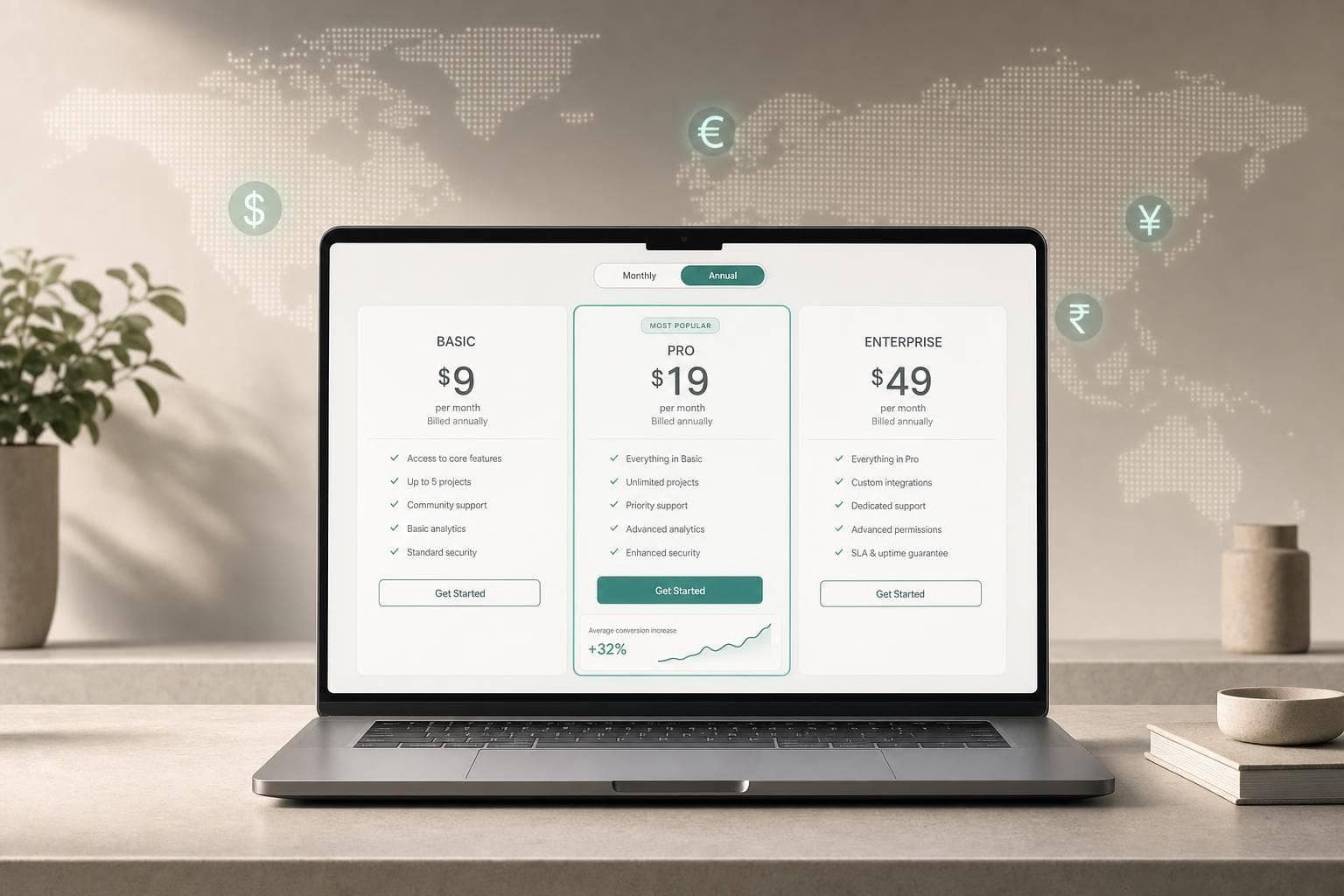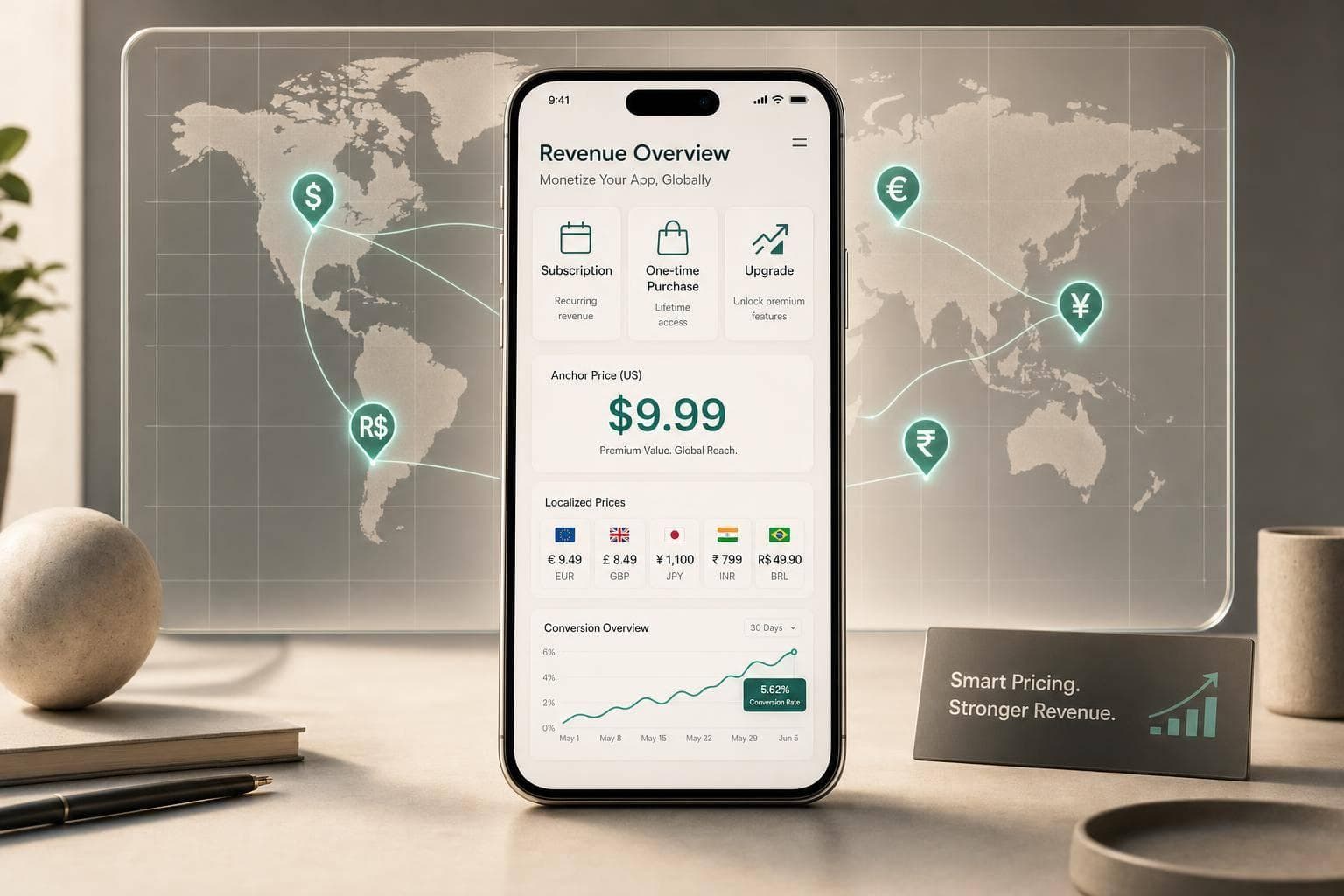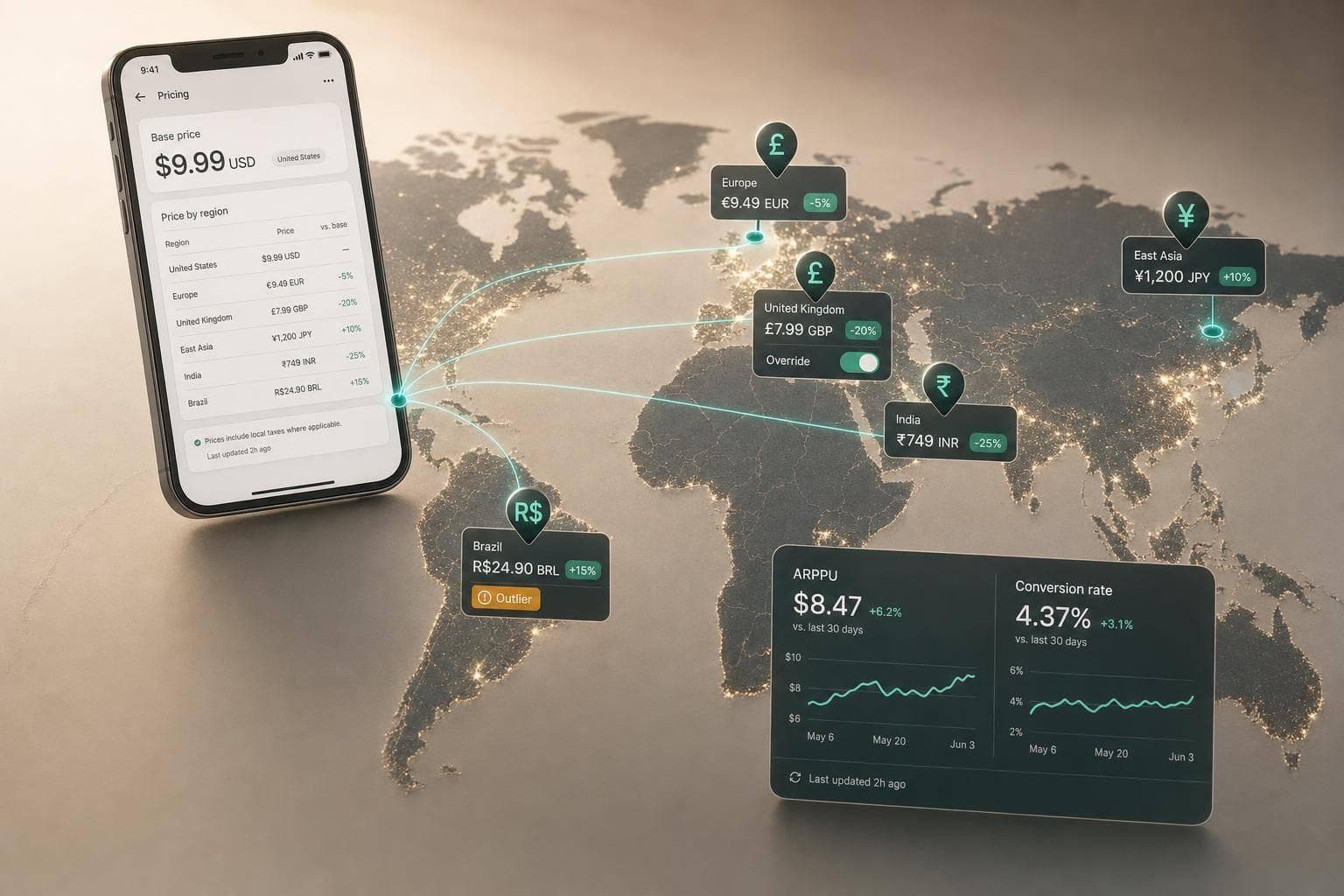
If you use one in-app price everywhere, you are almost certainly mispricing some markets. I’d handle this in a simple loop: set a U.S. base price, use Apple or Google’s local conversion as the starting point, override only the countries that are off, then track conversion, refunds, renewals, and ARPPU before you change more.
In practice, that means a few things:
- Apple and Google both start from a U.S. price
- Auto-converted prices are only a first draft
- Manual country overrides stop store auto-updates in that market
- Subscriptions need extra care because current subscribers may stay on old pricing or need to accept changes
- Price tests need time - early conversion data can show up in 7–14 days, but retention and LTV often need 3–6 months
- High-growth markets such as Brazil (+31%), Mexico (+26%), and South Korea (+21%) can justify closer price work
- Tools like RevenueCat, Adapty, and Purchasely help with billing and paywalls, while Mirava sits upstream to analyse country price points before you push updates live
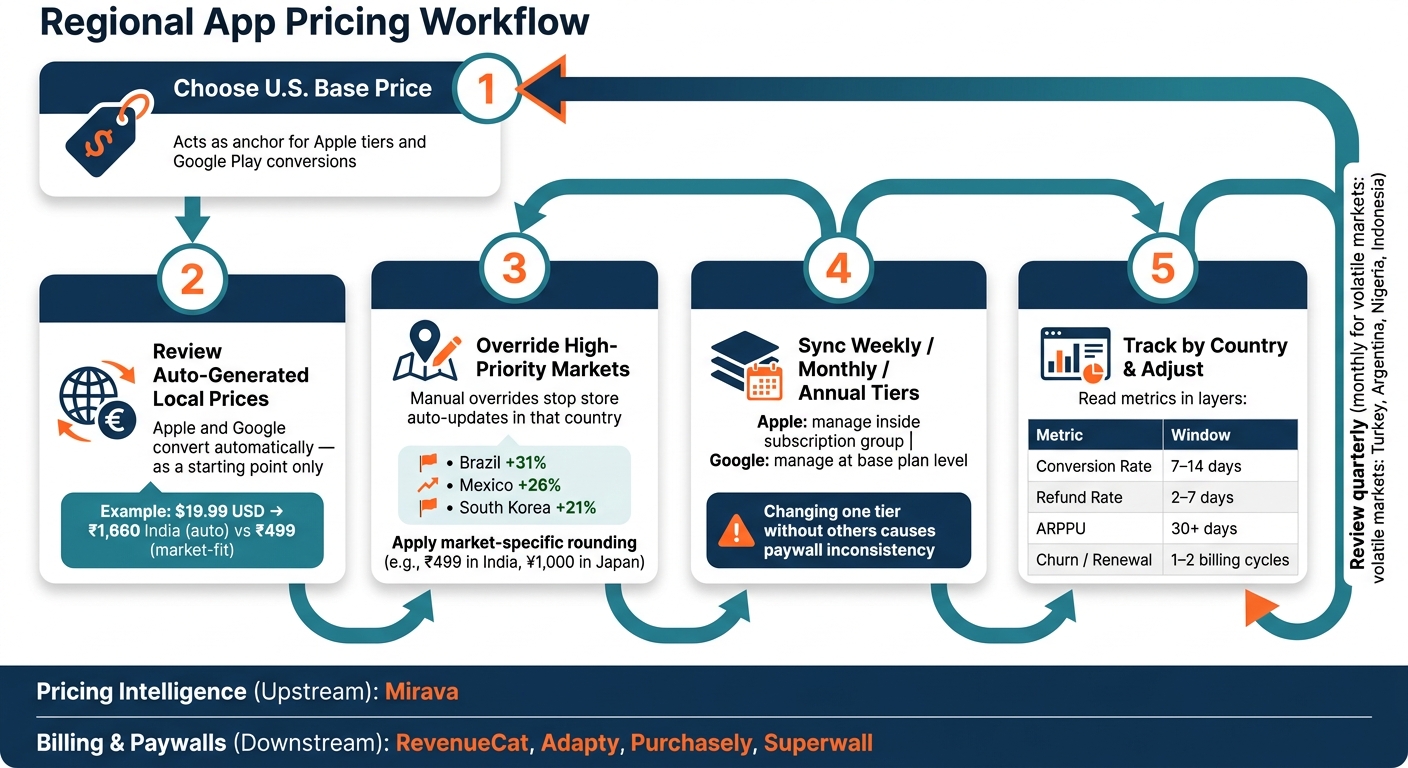
Regional App Pricing Workflow: Set, Override, Monitor & Adjust
How to price your subscription app globally - Featuring Jacob Rushfinn
sbb-itb-43fe43a
Quick comparison
| Area | Apple App Store | Google Play |
|---|---|---|
| Starting point | U.S. tier-based pricing | U.S. base price |
| Default local pricing | Storefront prices generated by Apple | Country prices generated by Google |
| Manual override effect | Store stops auto-repricing that storefront | Store stops auto-updating that country |
| Subscription handling | Manage inside subscription group pricing | Manage at base plan level |
| Scale option | Mostly console workflow | Console or Developer API |
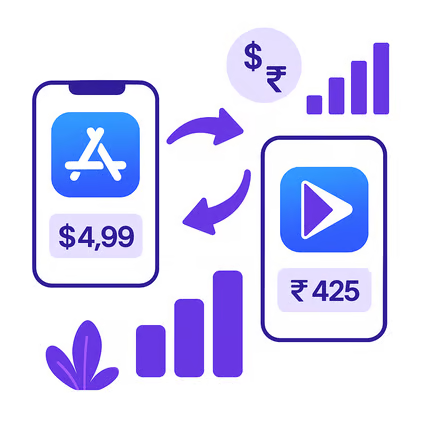
My short take: let the stores handle currency maths, but do not let FX alone decide what users should pay. A $19.99 U.S. price can land around ₹1,660 in India on conversion, while a market-fit price may be much closer to ₹499. That gap is where regional pricing work pays off.
If I were setting up a clean workflow, I’d keep it tight: pick the U.S. anchor, review country outliers, adjust local prices where demand and purchasing power differ, keep subscription tier logic aligned, and review results by country every month or quarter.
How to Set Region-Specific Prices in App Store Connect
Step 1: Choose Your U.S. Base Price and Pricing Approach
Start with your U.S. price. That price acts as the anchor for Apple’s regional pricing model. Because Apple works with fixed price tiers, you’ll need to pick the U.S. tier that sits closest to your target price [2][5]. From there, Apple generates prices for other storefronts automatically [5].
In most cases, the smart move is simple: use Apple’s generated storefront prices as your default, then override only the countries where local pricing needs tighter control.
That matters because not every market behaves the same way, and regional pricing boosts revenue by aligning with local purchasing power. A price that works cleanly in the U.S. can feel off in Brazil, India, or Turkey once local buying power, tax, and platform rounding come into play. So let Apple do the initial heavy lifting, then step in where the numbers don’t line up with your monetization model.
Step 2: Update the Product in In-App Purchases or Subscriptions
The setup path depends on the product type.
For a one-time IAP, go to In-App Purchases, choose the product, and open the Price Schedule section. For a subscription, go to Subscriptions, open the right Subscription Group, select the subscription by its reference name, and then find Subscription Prices [5][7].
Once you’re in the product screen, add pricing, review Apple’s generated storefront prices, and apply manual overrides only where needed. That last part is worth paying attention to: when you manually override a storefront, Apple stops re-pricing that market on its own [5][6].
That gives you control, but it also means more upkeep. If exchange rates shift or Apple updates price equalization in that country, your overridden price won’t move with it. This is where teams often need a pricing review rhythm, especially if they already use tools like RevenueCat, Adapty, or Purchasely downstream for billing, paywalls, or subscription management. App Store Connect is where the price gets set; the rest of the stack just carries it through.
For larger subscription price increases, you may want to keep existing subscribers on the old price where that makes sense. Also, update all linked subscription tiers - weekly, monthly, and annual - at the same time. If you change the monthly price in Brazil but leave annual pricing untouched, your discount structure can drift fast, and the paywall starts sending mixed signals.
App Price vs. IAP Price: Where to Make Each Change
The workflow is different for apps, one-time IAPs, and subscriptions, but the pricing logic stays the same. Edit app pricing in Pricing and Availability. Edit IAP and subscription pricing inside their own product screens [5][6][7].
One thing trips teams up all the time: app pricing and IAP pricing are separate. Changing one does not change the other [5].
How to Set Region-Specific Prices in Google Play Console
Google Play follows much the same regional pricing model as Apple, but the controls sit inside Play Console.
Step 1: Set a Base USD Price and Review Local Conversions
Start with a $USD base price. Google uses that base to generate local prices unless you override them, so treat it as your anchor and change only the countries that need a local fix.
Before you can sell paid products, you need an active merchant registration and a payments profile in Play Console. From there, go to Monetize with Play > Products > One-time products for IAPs, or Monetize with Play > Products > Subscriptions for recurring billing. Set the U.S. dollar base price, then check the country-level prices Google has generated in the product pricing section.
Google looks at current exchange rates and local market norms, but the default output is just a first pass. It handles currency conversion. It does not tell you what users in each market are actually willing to spend.
Step 2: Override Local Prices for Selected Countries
Google Play lets you set a local-currency price directly, whether that’s ₹487, ¥1,000, or another valid amount. The key question is simple: does the auto-converted number match what buyers in that country will pay? If not, you may need to set up purchasing power parity pricing to capture local demand.
To override a country, use the country-level control in the product pricing section and enter your target price. After you save a manual override, Google stops updating that country automatically when exchange rates move. That matters in markets such as India or Indonesia, where an auto-converted price can land 2x to 3x higher than a price that fits local purchasing power [4]. A $19.99 U.S. base price, for instance, might auto-convert to about ₹1,660 in India, while a PPP-adjusted price is closer to ₹499 [4][9].
Rounding matters too. In India, prices ending in 99 often feel normal, such as ₹499. In Japan, whole hundreds or thousands usually read better, such as ¥1,000. Small format choices like this can change conversion more than teams expect.
Step 3: Manage Subscription Prices at Scale
For subscriptions, pricing sits at the base plan level under each subscription’s pricing tab. If you increase a subscription price, current subscribers stay on the old rate until they accept the new one. If they do not accept it, the subscription cancels.
As of October 27, 2025, Google deprecated Pricing Templates [4][2]. That means every price change now happens per product.
For teams with large catalogs, the Play Developer API is the practical route. The monetization.convertRegionPrices method gives you localized price calculations based on current exchange rates before you apply overrides [8]. The monetization.subscriptions.patch method lets you update base plan prices by API, and monetization.subscriptions.basePlans.migratePrices handles moving subscribers out of legacy cohorts [10].
This is where infrastructure and pricing intelligence split into two different jobs. Tools like RevenueCat, Adapty, and Purchasely help with billing, paywalls, and subscription operations. A layer like Mirava sits upstream, helping teams analyse regional price points before they push changes through Play Console or the API.
| Approach | Best For | Key Limitation |
|---|---|---|
| Manual Console edits | 1–2 SKUs, infrequent changes | Country-by-country manual work across 175+ regions |
| Play Developer API | Large catalogs, frequent updates | Requires implementation |
How to Choose Better Country Prices With Pricing Intelligence Tools
Why FX-Based Defaults Often Miss Willingness to Pay
After you set regional prices in App Store Connect or Play Console, the next job is picking the right price for each market. Store auto-conversion handles currency maths. It does not tell you what people in that market are likely to pay.
That gap matters. A $19.99 U.S. price auto-converted to India lands at about ₹1,660, while a purchasing-power-based price is closer to ₹499 [9]. On paper, the conversion is correct. In practice, it can be way off. If you see low conversion in a market with lots of downloads, price mismatch is often the first thing to check.
Use Mirava to Model and Export Regional Prices
This is the layer where pricing intelligence tools come in. Mirava helps teams price across 170+ countries using real digital spending behavior, not just FX or PPP [1]. You set a base USD price, then export country-level prices mapped to Apple tiers and Google Play localized pricing inputs.
It also applies market-specific rounding, so you’re not stuck with awkward numbers that look machine-made. Think whole hundreds in Japan, or .99 and 99-style endings where those patterns match local buying habits. That means the output is ready to use, not something your team has to clean up by hand [1][9].
Align Pricing Decisions With RevenueCat, Adapty, Purchasely, and Superwall
Mirava sits upstream of your subscription stack. In plain terms, Mirava sets what to charge; RevenueCat, Adapty, Purchasely, and Superwall carry those prices through billing, paywalls, and entitlements [1].
| Approach | Basis | Maintenance | Psychological Rounding | Ecosystem Fit |
|---|---|---|---|---|
| Store auto-conversion | FX rates and taxes | Automatic, but ignores strategy | Often produces awkward numbers | Native only |
| Manual regional pricing | Developer research and manual entry | High effort per SKU and country | Requires manual adjustment | Native only |
| Pricing intelligence with Mirava | Local spending power and willingness to pay | Automated sync and drift alerts | Automated per-market rules | Aligns with RevenueCat, Adapty, Purchasely, and Superwall |
Once prices are live, track performance by country and adjust over time. That’s where better price setting turns into better monetization discipline.
How to Monitor Results and Adjust Prices Over Time
Track Conversion, ARPU, Renewals, and Churn by Country
Once your country prices are live, the next job is simple: watch the data and decide what stays and what changes. At the country level, track conversion, ARPU/ARPPU, refund rate, renewal rate, churn, store proceeds, and total revenue.
Conversion shows fit. Refunds show friction.
If downloads are strong but conversion is weak, you’re often looking at a pricing mismatch. If refund rate jumps after a price cut, that can point to price resistance. Watch that signal within 2–7 days. For subscriptions, short-term indicators like conversion and refunds usually become useful within 7–14 days. Renewal rates and lifetime value take longer. You need at least one full billing cycle, and in many cases 3–6 months, before the pattern is stable enough to trust [3].
| Metric | Evaluation Window | What It Tells You |
|---|---|---|
| Conversion Rate | 7–14 days | Whether the new price fits the market |
| Refund Rate | 2–7 days | Early warning of price resistance |
| ARPPU | 30+ days | Whether volume growth offsets lower per-user revenue |
| Churn / Renewal Rate | 1–2 billing cycles | Long-term sustainability of the price point |
This is where teams often get impatient. A price change can look good in week one and look far less attractive once renewals come through. That’s why it helps to read these metrics in layers: first conversion, then refunds, then ARPPU, then retention.
Test a Small Set of Countries Before Rolling Out Globally
Use those signals in a small test before making broader changes.
Before a global rollout, start with a few markets where your pricing confidence is lowest. In most apps, that means price-sensitive regions with high download volume but weak conversion. The goal is to get a clean signal, so don’t test tiny price moves that disappear into normal variance. Use a price gap large enough to show whether demand changes in a meaningful way.
Keep the test aligned with your paywall and subscription structure. Weekly, monthly, and annual tiers should still make sense relative to one another. Tools like RevenueCat, Adapty, and Purchasely can help manage billing, experiments, and paywall delivery, but the pricing logic itself still needs a clear market view. That’s where a pricing intelligence layer like Mirava sits upstream: analysing country-level patterns, checking regional willingness to pay, and helping teams decide which price points are worth testing before they push changes into their billing stack.
Once the result holds through at least one renewal cycle, you can extend the same logic to the rest of your country list.
Daphne Tideman, Growth Specialist, RevenueCat, puts it plainly:
"Pricing tests take a long time: You need to evaluate long-term monetization, not just short-term revenue bumps. It usually takes 3–6 months to understand the full impact on retention and LTV." [3]
After rollout, review prices every quarter. In more volatile markets - Turkey, Argentina, Nigeria, Indonesia - check monthly so FX drift doesn’t quietly eat into your margins [2][9].
Conclusion: Build a Repeatable Regional Pricing Workflow
Regional pricing works best as a loop: set, measure, adjust, repeat.
FAQs
How many countries should I override first?
Start with your top 10 to 20 markets by download volume. Then compare download-to-purchase conversion and ARPU across each one. That gives you a clear read on where pricing may be out of step with local purchasing power.
For a manageable rollout, group markets into tiers such as high-income, middle-income, and price-sensitive regions. From there, adjust pricing with intent rather than treating every market the same. This is where Mirava sits upstream of billing and paywall tools like RevenueCat, Adapty, and Purchasely, helping teams analyse regional demand and recommend price points before changes go live.
How often should I review regional prices?
Review regional prices on a regular cadence. Markets move, and pricing can drift out of step faster than most teams expect. Changes in local purchasing power, exchange rates, and tax rules all affect how an offer performs.
Apple and Google may update exchange rates and taxes on their side, but they don’t account for actual buyer demand in each market. That’s the gap. Mirava helps keep pricing aligned with digital purchasing behavior, while RevenueCat, Adapty, Purchasely, and Superwall handle billing, paywalls, and entitlements.
What metrics matter most after a price change?
After adjusting in-app prices, start with your north star metric: Revenue Per User (RPU). It gives you the clearest read on how each region is performing overall.
Then look at the supporting metrics around it: trial-to-paid conversion, LTV, churn, and 7-, 30-, and 90-day retention. These numbers help you spot where users are dropping off, where price sensitivity is showing up, and where engagement may be slipping.
Mirava can compare these metrics against historical baselines, while RevenueCat, Adapty, Purchasely, and Superwall help surface paywall performance.